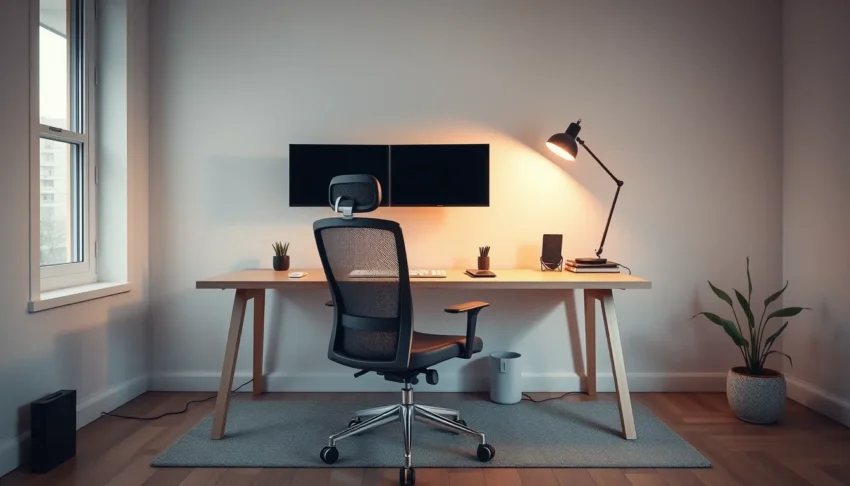
If you spend long hours at a computer and notice aches, eye strain, or scattered focus, this guide is for you. It shows how to arrange a workspace that feels natural and keeps your body aligned.
You’ll learn the basics of ergonomics—chair height, desk angle, monitor position—and how to set up ambient and task lighting that protects your visual field. Digital declutter steps will keep distractions at bay.
By the end, you’ll have a clear, step‑by‑step plan to transform any corner into a comfortable, efficient hub that supports sustained concentration and healthier work habits.
Assessing Your Space and Core Needs
Start by measuring your available square footage. You do not need a large room, but you need enough clearance to move your arms freely without hitting walls or furniture. Measure the distance from where you will sit to the nearest obstruction. This determines whether you need a compact desk or a larger standing workstation.
Next, define your primary tasks. Typing for eight hours requires different physical support than sketching or video editing. If you type extensively, prioritize keyboard and mouse positioning. If you work with documents, consider a larger surface area or a document holder. Your equipment should match your workflow, not the other way around.
Identify non-negotiable infrastructure before buying furniture. Locate power outlets and check if they are reachable from your intended desk position. Avoid running long extension cords across walkways, as this creates tripping hazards. Assess natural light access. Position your desk so that windows are to your side, not directly behind or in front of your monitor, to prevent glare and shadowing.
Finally, list your comfort requirements. Do you work better in silence or with background noise? Do you need specific storage for supplies? Focus on functionality. A workspace that supports your body and mental state is far more valuable than one that merely looks aesthetically pleasing in a photograph.
Establishing Ergonomic Foundations
Start by adjusting your chair so your feet rest flat on the floor, with thighs parallel to the ground. Your knees should form a ninety-degree angle. If your feet dangle, use a footrest to maintain this alignment, which reduces pressure on your lower back. Ensure the seat provides adequate lumbar support; if the chair lacks a dedicated adjustment, place a small cushion or rolled towel against the lower spine to maintain natural curvature.
Next, position your armrests so your elbows rest comfortably at your sides, keeping shoulders relaxed. The height should allow your forearms to be parallel to the floor when typing. This prevents shoulder hunching and keeps your upper body in a neutral posture throughout the day.
For the monitor, place the top edge of the screen at or slightly below eye level. This angle keeps your neck in a neutral position, avoiding the strain of looking up or down. Sit far enough away that you can read text without squinting or leaning forward, typically about an arm’s length. This distance reduces eye fatigue and maintains a healthy visual field.
Finally, align your keyboard and mouse so your wrists remain straight, not bent up or down. Your forearms should stay parallel to the floor. This simple adjustment significantly reduces the risk of wrist strain and repetitive stress injuries, allowing for sustained work without discomfort.
Optimizing Lighting and Visual Comfort
When you learn How to Set Up a Productive Home Workspace, the first lighting decision is to separate the three functional layers: ambient light that fills the room, task light that illuminates the work surface, and accent light that adds depth without causing distraction. Ambient lighting should be even and diffused—think ceiling fixtures or wall sconces—so the overall space feels bright but not harsh.
Task lighting is the focused source for reading documents or writing notes. A desk lamp with an adjustable arm lets you direct light exactly where you need it, keeping the visual field comfortable without competing with the screen.
Accent lighting, such as a subtle floor lamp or a narrow LED strip, can highlight shelving or artwork and helps prevent the room from feeling sterile, but it should never shine directly onto the monitor.
- Window placement: Position the monitor perpendicular to windows whenever possible; if that isn’t feasible, use blinds or sheer curtains to diffuse incoming sunlight and eliminate screen glare.
- Color temperature: Choose warm light (around 2700–3000 K) for evening work or relaxation periods, and cooler light (4000–5000 K) during focused tasks to promote alertness.
- Screen brightness: Match the monitor’s brightness to the room’s overall illumination—bright enough to see details but low enough to avoid a stark contrast that strains the eyes.
Balancing these elements creates a visual environment that supports concentration while minimizing eye fatigue, a key step in a sustainable home office setup.
Managing Noise and Distractions
When sound spills into your workspace, the brain’s focus is fragmented. A simple first step is to isolate yourself with a pair of noise‑canceling headphones. Even a basic model can dampen background chatter and traffic noise, letting you tune into the rhythm of your work.
If headphones are impractical, a white‑noise machine or a fan can mask abrupt sounds. The key is to choose a steady, low‑volume sound that your brain can treat as a neutral backdrop rather than a distraction.
Visual clutter is equally disruptive. Position your desk so you face a neutral wall or the room’s perimeter rather than a window or a busy living area. This reduces the temptation to glance away and keeps peripheral vision focused on the task at hand.
Finally, communicate clear boundaries. A short note on the fridge, a “do‑not‑disturb” sign on the door, or a scheduled “office hours” calendar invite signals to family members that
Organizing for Workflow Efficiency
They should respect the work zone, and you can reinforce that respect by keeping the zone itself free of visual and digital clutter. Start with cable management: bundle cords with Velcro straps or cable sleeves, route them behind the desk or along a dedicated channel, and label each bundle. This prevents accidental tugging and eliminates the “spaghetti” look that constantly draws the eye away from the task.
Next, allocate storage that matches a “zone” approach. Place the most frequently used items—pen holder, notepad, reference books—within an arm’s reach on the desk surface or on a nearby shelf. Reserve a second tier for items you need only occasionally, such as extra monitors, external drives, or paperwork, and store them in a closed cabinet or drawer. By limiting the reach distance, you reduce the physical effort required to retrieve tools, preserving focus for the work itself.
Digital declutter follows the same principle. Keep the desktop background plain and the icon layout minimal; use folders that mirror your physical zones (e.g., Current Projects, Reference, Archive). Adopt a consistent naming convention and a hierarchical file structure so that locating a document becomes a quick, predictable action rather than a mental search.
- End each day with a five‑minute “reset”: close open windows, archive finished files, and return any stray supplies to their designated zone.
- Schedule a weekly review of both physical and digital spaces to purge items that are no longer needed.
Creating a Routine for Transitioning In and Out
Understanding that a dedicated zone triggers a work mindset is the first step in How to Set Up a Productive Home Workspace. When you cross the threshold of your chosen area, your brain receives a clear cue that focus time is starting, and the same cue works in reverse when you leave.
Start‑up ritual:
- Adjust chair height and monitor angle to reaffirm ergonomic alignment.
- Switch on task lighting and verify that the ambient lighting is balanced, keeping the visual field free of glare.
- Perform a quick digital declutter—close unrelated tabs, mute non‑essential notifications, and open only the tools needed for the day’s priorities.
- Spend two minutes writing a brief agenda; this externalizes intent and reduces mental load.
Shutdown ritual:
- Save work, log out of active accounts, and dim task lighting while leaving ambient lighting at a relaxed level.
- Physically step away from the desk for at least five minutes; place a reminder of the next day’s top task on the edge of the workspace.
- Return any stray items to their designated spots, reinforcing the tidy environment you established.
Throughout the day, schedule microbreaks—stand, stretch, and look beyond the screen to reset the visual field. Regular movement away from the desk protects against burnout and maintains the ergonomic benefits you built into the space.